Anúncios
That moment when your squad is one kill away from a Chicken Dinner and your screen suddenly turns into a slideshow? Pure heartbreak. Mobile games have become visually stunning beasts, pushing phones to their absolute limits, and even flagship devices can stutter when you’re not treating them right.
The good news is that lag is rarely a hardware problem alone. Most of the time, it’s a mix of background clutter, bad settings, thermal throttling, and a few habits you probably didn’t know were hurting your frame rate. Let’s fix all of that.
Anúncios
Why Your Phone Lags in Heavy Games
Before you start tweaking anything, it helps to understand what’s actually slowing you down. Lag on mobile usually comes from four main sources, and each one needs a different fix.
- CPU and GPU overload — too many processes fighting for power
- Thermal throttling — your phone lowers performance to protect itself from heat
- RAM shortage — background apps eating memory your game needs
- Network latency — high ping in online games feels exactly like lag
Once you know which of these is hitting you hardest, the optimization steps below become much more effective.
Clean Up Your Phone Before You Play
A cluttered phone is a slow phone. Think of your device like a desk — the more junk piled on top, the harder it is to get real work done. The same logic applies when your GPU is trying to render a battle royale map.
Free Up Storage Space
When your internal storage is nearly full, read and write speeds drop dramatically. Aim to keep at least 15–20% of your storage free at all times. Delete old screenshots, uninstall apps you haven’t opened in months, and clear the cache of apps you rarely use.
Kill Background Apps
Social media apps, messaging platforms, and browsers keep refreshing in the background even when closed. Before launching a heavy game, swipe them all away from your recent apps drawer. On Android, you can also restrict background activity for specific apps in the battery settings.
Clear Game Cache Regularly
Corrupted or bloated cache files can cause weird micro-stutters. Every couple of weeks, head into your app settings and clear the cache for your main games. Don’t clear data though — that wipes your progress if the game isn’t cloud-synced.
Dial In Your In-Game Settings
This is where most players get it wrong. Cranking every graphics slider to the maximum might look pretty, but it’s the fastest way to melt your phone and kill your frame rate. Smooth gameplay always beats prettier gameplay.
Prioritize Frame Rate Over Graphics
If your game lets you choose between high graphics and high frame rate, pick the frame rate every time. A stable 60 FPS at medium graphics feels ten times better than a choppy 30 FPS at ultra. Your aim, reaction time, and overall experience all improve with smoother frames.
Turn Off Features You Don’t Need
Shadows, anti-aliasing, and real-time reflections are gorgeous but brutally expensive. Try disabling these one by one and see how much smoother things get. You’ll often gain 10–15 FPS with almost no visual loss during fast-paced matches.
Match Resolution to Your Screen
Some games let you render at a higher resolution than your screen actually displays. That’s wasted power. Keep the rendering resolution at native or slightly below, and you’ll free up GPU cycles for a steadier frame rate.
Manage Heat Like a Pro
Heat is the silent killer of mobile performance. The second your phone hits a certain temperature, it automatically slows down the processor to cool off — and that’s when your smooth 60 FPS nosedives into stuttery 30s.
- Take your phone out of its case during long sessions — cases trap heat
- Avoid playing while charging whenever possible; it doubles the heat output
- Keep your phone out of direct sunlight and off soft surfaces like beds or couches
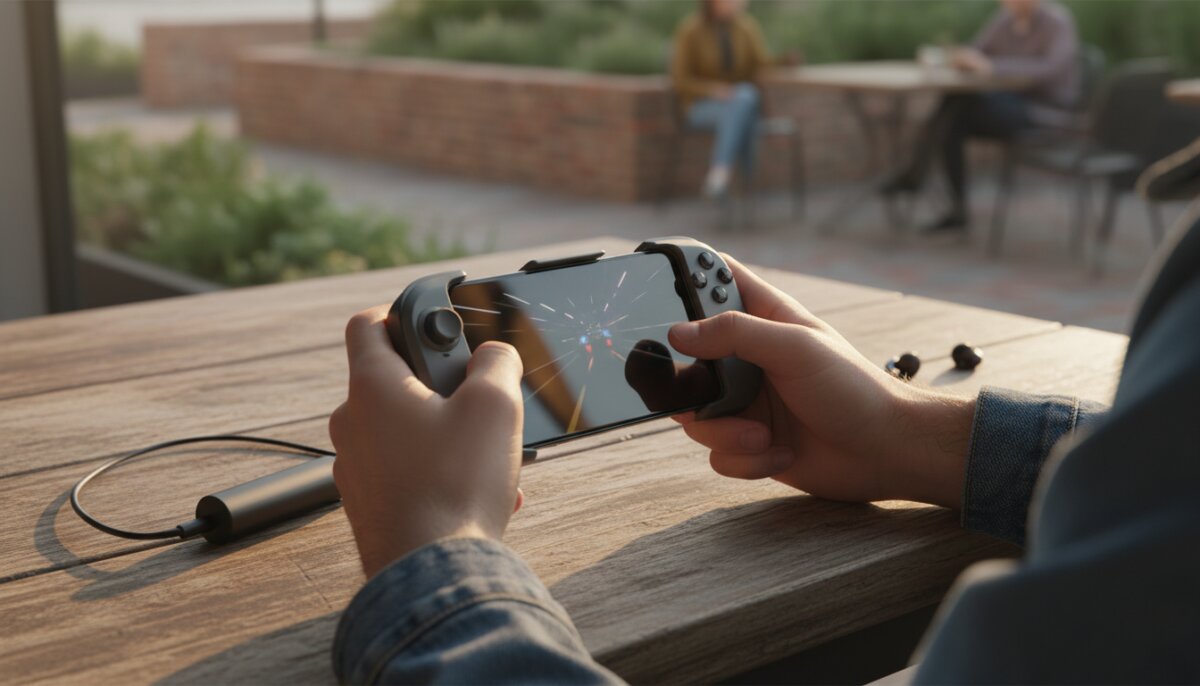
- Consider a clip-on cooling fan for marathon sessions, especially in hot climates
- Take a 5-minute break every hour to let the internals cool down naturally
If your phone feels uncomfortably warm to hold, it’s already throttling. Cool it down before the performance tanks, not after.
Tweak System Settings for Gaming
Modern phones hide a surprising amount of performance behind default settings designed for battery life. A few quick changes can squeeze out real gains.
Enable Performance or Game Mode
Almost every Android skin now includes a built-in game booster — Samsung has Game Booster, Xiaomi has Game Turbo, OnePlus has Gaming Mode, and so on. iPhones handle this automatically but also benefit from Low Power Mode being turned off during play.
These modes typically block notifications, lock background apps, and push the processor harder. Enable them before every serious session.
Turn Off Animations
On Android, enable Developer Options and set Window, Transition, and Animator scales to 0.5x or off entirely. The whole system feels snappier, and menus in games load faster too.
Disable Auto-Updates and Syncing
Nothing ruins a match like a 2 GB app update kicking off mid-fight. Set your app store to update only over Wi-Fi and only when the phone is idle. Also pause cloud photo backups while gaming — they hammer your network and CPU.
Fix Your Network for Online Games
If you’re playing multiplayer, half your “lag” might not be your phone at all — it’s your connection. Ping above 100 ms makes any competitive game feel broken, no matter how powerful your device is.
Wi-Fi Tips That Actually Work
Sit as close to your router as you reasonably can, and connect to the 5 GHz band instead of 2.4 GHz when available. 5 GHz is faster and less crowded, though its range is shorter. If your router supports it, enable QoS and prioritize your gaming device.
Mobile Data Considerations
On cellular, 5G generally offers lower latency than 4G, but signal strength matters more than the network type. A strong 4G signal beats a weak 5G signal every time. If you bounce between Wi-Fi and mobile data, turn off auto-switching during matches to prevent sudden disconnects.
Maintenance Habits That Keep Performance High
Optimization isn’t a one-time job. Phones get slower over time because of software bloat, aging batteries, and accumulated clutter. Build these habits into your routine and your device will stay game-ready for years.
- Restart your phone at least twice a week — it clears memory leaks
- Keep your OS and games updated; patches often include performance fixes
- Audit your installed apps monthly and delete what you don’t use
- Watch your battery health — a degraded battery can’t deliver peak power
- Avoid sketchy “RAM booster” apps; they often do more harm than good
Common Mistakes That Kill Performance
Even well-meaning players sabotage their own phones. Watch out for these traps that sound helpful but actually hurt your frame rate.
Installing too many cleaner apps — most of them run constantly in the background and consume more resources than they free up. Your phone’s built-in tools are usually enough.
Using live wallpapers and heavy launchers — they drain RAM and GPU cycles 24/7. Stick to a static wallpaper and the stock launcher if performance matters to you.
Playing with screen brightness maxed out — it generates heat and drains the battery, which forces the system to throttle faster. Auto-brightness is your friend.
Your Lag-Free Gaming Checklist
Getting smooth gameplay out of a mobile device is less about having the most expensive hardware and more about respecting its limits. Keep storage lean, temperatures low, background noise quiet, and graphics settings honest about what your phone can actually handle.
Run through a quick pre-game ritual: close background apps, enable game mode, remove the case, check your connection, and lower any graphics setting you don’t truly need. Do this consistently and you’ll notice the difference in your very next match — sharper reactions, steadier frames, and a whole lot fewer moments of screaming at your screen.